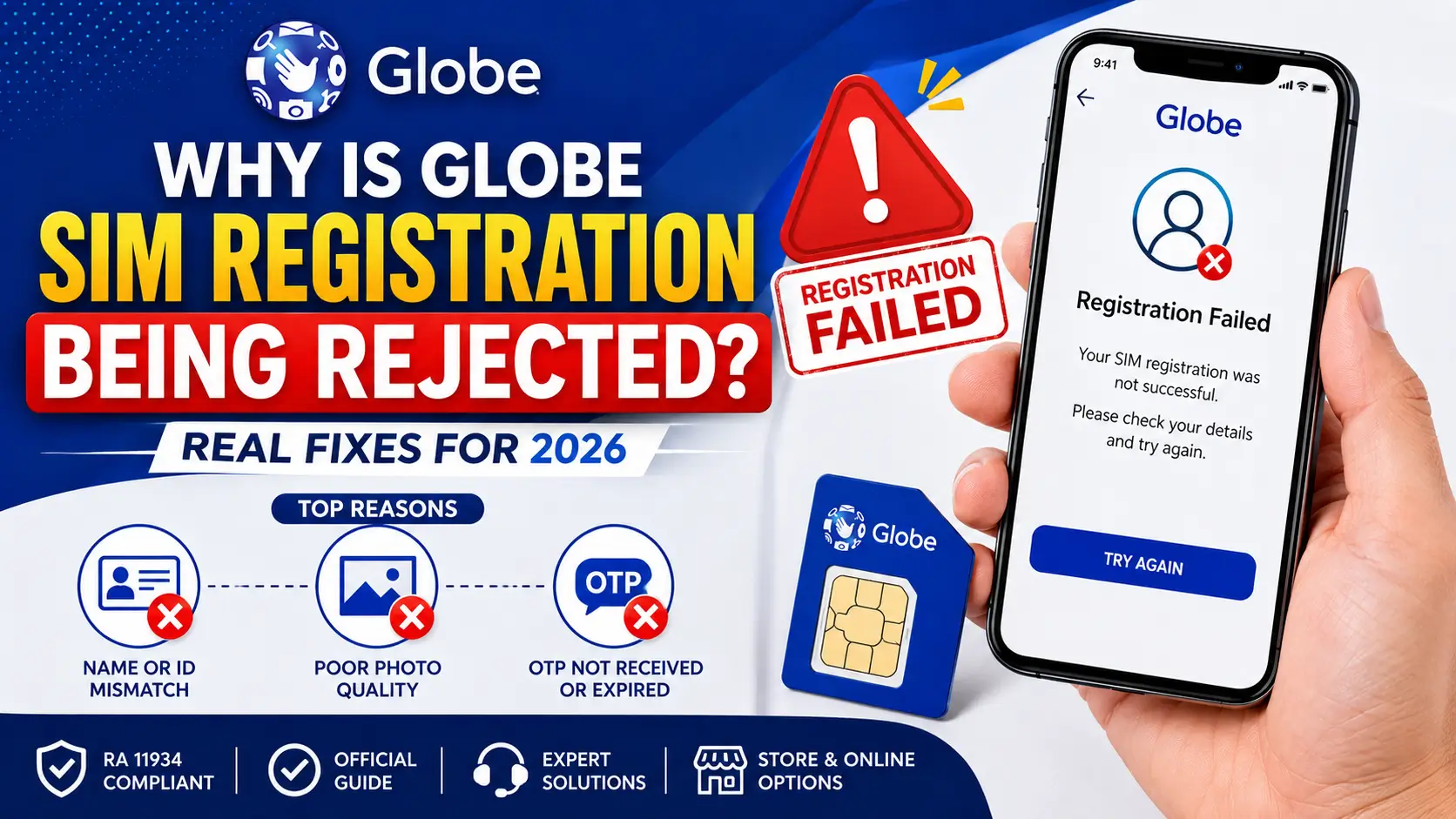
Why Is Globe SIM Registration Being Rejected? Real Fixes for 2026
Last Updated: May 2026 · Verified against Globe’s official SIM Registration Act page (RA 11934) and NTC advisories
About This Guide: Written based on hands-on testing of Globe’s registration portal and the GlobeOne app, cross-referenced with Globe Telecom’s official Help & Support page and National Telecommunications Commission guidelines.
Why Is Globe SIM Registration Being Rejected? and you have no idea why. You filled out every field, uploaded your ID, took the selfie — and the system still sent you back. Thousands of Globe and TM subscribers in the Philippines hit this exact problem, and most fix it once they know where the system is breaking.
Quick Answer: Top 3 Reasons Globe SIM Registration Gets Rejected
These three causes cover roughly 80% of all rejections:
- Name or ID number mismatch — what you typed doesn’t exactly match your uploaded ID
- Poor photo quality — blurry, oversized (over 2 MB), or wrong file format
- OTP not received or expired — weak signal, full SMS inbox, or wrong APN setting
What the Globe SIM Registration System Checks
Registration is mandatory under Republic Act No. 11934, enforced by the National Telecommunications Commission (NTC). It covers Globe Mobile, TM (Touch Mobile), Globe At Home Prepaid WiFi, and Globe Business SIMs.
Every submission at new.globe.com.ph or the GlobeOne app runs three checks:
- Identity verification — name, birthdate, and address must match your ID exactly
- Photo verification — selfie must pass facial recognition; ID photo must be machine-readable
- Network verification — OTP sent to your SIM must arrive and be entered before it expires
The system rarely tells you which check failed. It just says the registration didn’t go through.
Why Is Globe SIM Registration Being Rejected? All 7 Reasons
1. Name or ID Details Don’t Match Exactly
The most common cause. The system does a character-level comparison between your form entry and your uploaded ID. One character off — it fails.
Triggers: Nickname instead of legal name · Missing middle name · Wrong suffix (Jr./Sr.) · Wrong birthdate format · ID number dashes or spaces formatted differently
Fix: Open your physical ID beside the form. Type every field character-by-character. Do not use autofill — it reformats names in ways that don’t match your ID.
2. ID Photo Fails Verification
Globe’s system optically reads every field on your ID. Anything reducing legibility causes a silent rejection.
Triggers: Photo taken at an angle · Flash or sunlight glare · Finger covering ID number · File over 2 MB · Wrong format (PDFs and HEIC are rejected-— only JPEG and PNG accepted)
Fix: Lay your ID flat on a dark surface, flash off, photograph straight down in natural window light. Compress to under 1 MB using Squoosh or TinyPNG before uploading.
3. Selfie Fails Facial Recognition
The selfie matches your face to your ID photo. Poor lighting or blocked features cause rejection.
Triggers: Glasses · Hair covering face · Heavy shadows · Face too small in frame · Busy background
Fix: Face a window in natural light. Remove glasses. Fill 70% of the frame forehead to chin. Use the GlobeOne app’s built-in camera — it’s calibrated for the system’s requirements and avoids manual upload errors.
4. OTP Not Received or Expired
The OTP confirms your SIM is active and in your hands. No OTP = failed registration.
Triggers: Weak signal · SIM loose in tray · Full SMS inbox · Wrong APN selected · OTP expired (5-minute window) · Spam filter blocking SMS
Fix: Power off, reseat the SIM, power on outdoors. Clear your SMS inbox. Confirm APN is set to “Globe Prepaid.” Request one OTP, enter it within 3 minutes.
5. Server Error or System Downtime
Globe’s portal slows during peak hours and goes down during maintenance.
Triggers: High traffic near deadlines · Scheduled maintenance · Slow connection timing out mid-form · Stale browser session
Fix: Check Globe’s official Facebook page for maintenance notices. Register between 6 AM–9 AM on weekdays. If the portal fails 3 times, switch to the GlobeOne app.
6. Old or Damaged SIM Card
SIMs older than 3–4 years sometimes can’t connect to Globe’s 4G/5G network. No connection = no OTP.
Symptoms: Consistent “No Service” · OTP never arrives even in strong signal areas · Portal freezes at OTP step
Fix: Test the SIM in a different phone. If signal is still weak, visit a Globe Store for a free SIM replacement — you keep the same number.
7. Duplicate Registration
If the SIM was already registered at point of sale or by you previously, resubmitting triggers a rejection.
Fix: Dial *143# or check the GlobeOne app dashboard before registering. If it’s already registered, no action needed.
Registration Methods: Online vs. In-Store
| Feature | Online (new.globe.com.ph / GlobeOne App) | In-Store (Globe Store) |
|---|---|---|
| Convenience | From home, any time | Requires travel |
| OTP Required | Yes | No |
| Photo Upload Required | Yes | No |
| Best For | Working SIMs, stable signal | Old SIMs, repeated online failures |
| Cost | Free (zero-rated) | Free |
| Risk of Rejection | Higher (image quality) | Lower (staff assists) |
Globe SIM vs. TM SIM Registration
| Aspect | Globe Mobile | TM (Touch Mobile) |
|---|---|---|
| Portal | new.globe.com.ph | new.globe.com.ph (same) |
| App | GlobeOne | GlobeOne |
| Support Hotline | 211 (free) | 808 (free) |
| ID Requirements | Government-issued ID | Same |
| 5G Support | Yes | Not on all plans |
Related: Globe SIM Registration Link Not Working? 7 Fast Fixes (2026)
Common Mistakes That Get Globe SIM Registration Rejected
- Nickname instead of legal name — “Jun” for “Juanito” fails every time
- Expired ID — Globe’s system checks visible expiry dates; use a current document
- Photo of a photocopy — only original card photos are accepted
- VPN active during registration — disables OTP delivery; turn it off before starting
- Refreshing mid-submission — clears your session; you restart from Step 1
Pro Tips for a Smooth Registration
- Use the GlobeOne app — handles image uploads and OTP better than the browser
- Register 6–9 AM on weekdays — lowest server load, fastest processing
- Prepare ID photo and selfie before opening the portal — timeouts during upload cause most failures
- Keep your reference number in two places — screenshot + write it down
Troubleshooting: 3 Most Common Problems
Problem 1: “Registration Failed” with no explanation
Fix: Clear browser cache, open an incognito window, retype all details character-by-character from your physical ID. If it fails again, retake your ID photo with better lighting. After two browser failures, switch to the GlobeOne app.
Problem 2: OTP never arrives
Fix: Power off → remove SIM → reinsert → power on outdoors. Delete old SMS to free inbox space. Set APN to “Globe Prepaid.” Request one OTP, wait 3 minutes. If it still doesn’t arrive, try the SIM in a different phone. Persistent failure = SIM needs replacement.
Problem 3: Selfie keeps getting rejected
Fix: Use GlobeOne app’s built-in camera. Face a window, remove glasses, fill 70% of frame. If uploading manually, confirm the file is JPEG or PNG under 2 MB — compress with Squoosh if needed.
What to Do When Nothing Works
Visit any Globe Store with your physical ID. Staff verify identity in person, bypassing photo uploads and OTP entirely. They can also replace a damaged SIM at no charge.
Find the nearest branch:
- globe.com.ph/stores
- Call 211 (Globe, free)
- 808 (TM, free)
Frequently Asked Questions
Conclusion
Most Globe SIM registration rejections come down to a name mismatch, bad photo, or failed OTP. Work through those three first. If online registration keeps failing, the GlobeOne app is the more reliable alternative. If that also fails, walk into a Globe Store — in-person registration skips every step that causes online failures.
Official portal: new.globe.com.ph · Support: 211 (Globe) · 808 (TM)
Disclaimer: Globe Telecom’s portal and policies may change. Verify current requirements at globe.com.ph or by calling 211.

Ryan Tan is a Globe SIM registration expert with 4+ years at Globe Telecom Philippines. He specializes in GlobeOne app, PasaLoad, APN settings, PUK codes, and GCash loading. Ryan Tan shares hands-on tips for seamless telecom services. Connect on LinkedIn or visit his Globe profile. In free time, he explores mobile tech with family.