Fix Selfie Verification Error During Globe SIM Registration – Full Guide

Are you seeing a selfie verification error during Globe SIM registration? This is a common issue when the system cannot properly detect your face while verifying your identity. Without a successful selfie, SIM registration cannot be completed.
Most selfie verification failures occur due to poor lighting, camera permission issues, blurry images, or unsupported browsers. This guide provides step-by-step fixes, practical tips, and examples so you can successfully complete your Globe SIM registration.
Telecom providers like Globe Telecom require selfie verification to confirm that the person registering the SIM matches the submitted ID. This verification is part of regulatory compliance under the SIM Registration Act of the Philippines.
The system checks:
Failing any of these checks triggers a selfie verification error during Globe SIM registration.
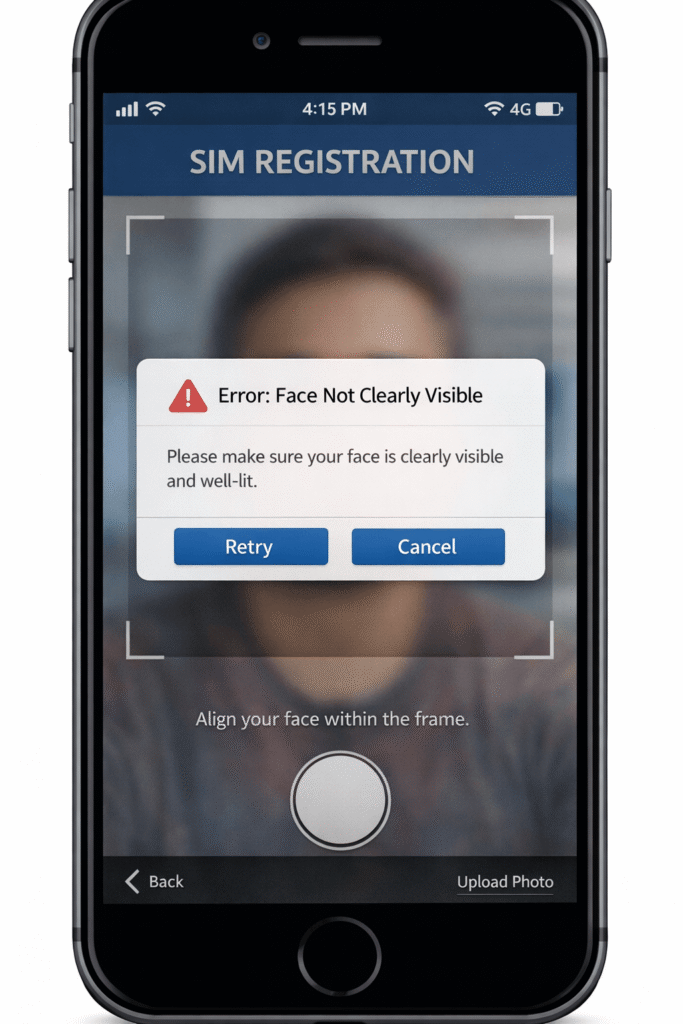
Many users encounter this error when taking selfies indoors with dim lighting. After capturing the selfie, the system may display:
“Error: Face Not Clearly Visible. Please ensure your face is well-lit and fully visible.”
Here’s a screenshot example for clarity:
- Poor Lighting – Dark or uneven lighting prevents proper facial detection.
- Camera Permissions Denied – The system cannot access your camera.
- Blurry or Low-Quality Image – Dirty lens or unsteady hand can create a blurry selfie.
- Face Not Centered – If your face is outside the capture frame, verification fails.
- Unsupported Browser – Older browsers may not support the portal’s camera tool.
Step 1 – Grant Camera Access
Ensure your browser or device allows camera access for the registration portal.
Step 2 – Improve Lighting
Stand in a well-lit area where your face is fully visible. Avoid backlighting.
Step 3 – Center Your Face
Align your face within the on-screen capture frame and look directly into the camera.
Step 4 – Clean Camera Lens
A clean lens ensures clear image capture.
Step 5 – Use a Supported Browser
Switch to Chrome or Safari for best compatibility with the registration portal.
| Problem | Likely Cause | Solution |
|---|---|---|
| Camera not opening | Permission denied | Enable camera access in browser |
| Selfie rejected | Poor lighting | Move to a bright area |
| Blurry image | Dirty lens | Clean the front camera |
| Capture button not working | Browser issue | Use Chrome or Safari |
| Face not detected | Face outside frame | Center your face properly |
- Use a device with a working front camera
- Avoid hats, sunglasses, or masks
- Keep phone steady while capturing
- Maintain a stable internet connection
- Take multiple attempts if needed
Following these steps improves your chances of passing the selfie verification on the first try.
If the selfie verification error persists, the issue may be due to server maintenance or technical problems. Contact Globe Telecom support to verify your registration status and get assistance.
The selfie verification error during Globe SIM registration is a common but solvable issue. Most errors occur because of lighting, camera access, image clarity, or browser problems.
By granting camera permission, improving lighting, centering your face, cleaning the camera lens, and using a supported browser, you can successfully complete the verification process and finalize your Globe SIM registration without delays.

Ryan Tan is a Globe SIM registration expert with 4+ years at Globe Telecom Philippines. He specializes in GlobeOne app, PasaLoad, APN settings, PUK codes, and GCash loading. Ryan Tan shares hands-on tips for seamless telecom services. Connect on LinkedIn or visit his Globe profile. In free time, he explores mobile tech with family.